 DNS24.online
You are using DNS24. Your DNS requests are encrypted!
You are not using DNS24 now :(
About
Welcome
This is a DNS service run by pub.dns24.online.
The goal is to offer a public encrypted DNS service without query logs that people can use to maintain the security of their DNS traffic, and also block ads and trackers.
We already support DNS over HTTPS (DoH), DNS over TLS (DoT) and DNS over QUIC (DoQ).
Set up on your device
- Go to Settings.
- Scroll down to the Network Settings section and click on the Settings… button.
- Enable Enable DNS over HTTPS.
-
Select Use Provider: Custom, then enter
https://pub.dns24.online/dns-query - Go to Settings.
- In the Privacy and security section, click on Security.
- Enable Use secure DNS.
-
Select With: Custom, then enter
https://pub.dns24.online/dns-query - Go to Settings.
- Go to Privacy, Search, and Services, then scroll down to the Security section.
- Enable Use secure DNS to specify how to lookup the network address for websites.
-
Select Choose a service provider, then enter
https://pub.dns24.online/dns-query - Go to Settings.
- In the Security tab, click on Use a secure DNS server.
-
Select Use: other address, then enter
https://pub.dns24.online/dns-query
Firefox
Google Chrome
Microsoft Edge
Yandex Browser
- Open Settings.
- Go to Network & internet.
- Click on Wi-Fi (or Ethernet).
- Click on Hardware properties, or ignore this step if you clicked on Ethernet.
- Click the Edit button next to DNS server assignment.
- Select Manual.
- Enable IPv4.
- Enter
Preferred DNSandAlternate DNS:77.91.68.8 138.124.81.6
- If need IPv6 (optionaly) Enable IPv6
Preferred DNSandAlternate DNS:2a13:7e40:2:4000::1 2a13:7e40:3:3006::1
- Click Save.
Any Routers
- In your browser, enter the IP address of your router to access the router's administration console.
- Navigate to where the DNS settings are specified.
- Add this DNS addresses:
77.91.68.8
138.124.81.6 - Save your changes.
OpenWrt - HTTP DNS Proxy
- Open the Services - HTTPS DNS Proxy.
- Click Add - Provider - Custom.
- Parameter
https://pub.dns24.online/dns-query - Bootstrap DNS
138.124.81.6, 77.91.68.8 - Save your changes and Start service.
- Open the Settings app.
- Go to Security and Privacy.
- Enable Use secure DNS.
- Select With: Custom, then enter
https://pub.dns24.online
- Enable the systemd-resolved service.
- Edit
/etc/systemd/resolved.conf:[Resolve] DNS=77.91.68.8#pub.am.dns24.online DNS=2a13:7e40:2:4000::1#pub.am.dns24.online DNS=138.124.81.6#pub.fr.dns24.online DNS=2a13:7e40:3:3006::1#pub.fr.dns24.online DNSOverTLS=yes
- Restart the systemd-resolved service.
DNS-over-HTTPS (DoH)https://pub.dns24.online/dns-query
DNS-over-TLS (DoT) / DNS-over-QUIC (DoQ)
pub.am.dns24.online
pub.fr.dns24.online
DNS 53 (IPv4)
77.91.68.8
138.124.81.6
DNS 53 (IPv6)
2a13:7e40:2:4000::1
2a13:7e40:3:3006::1
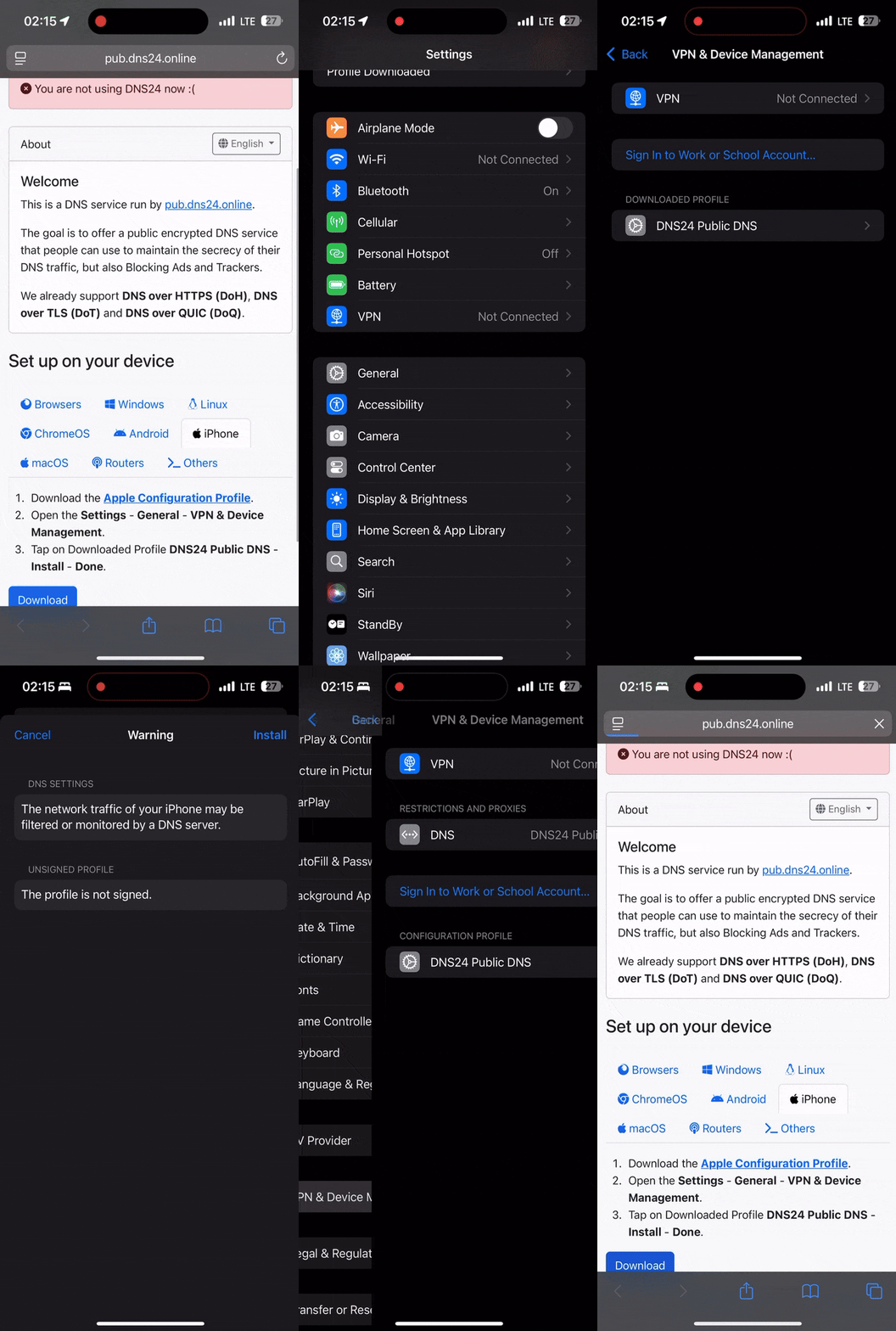
- Download the Apple Configuration Profile.
- Open the Settings - General - VPN & Device Management.
- Tap on Downloaded Profile DNS24 Public DNS - Install - Done.
Download - DNS over TLS .mobileconfig
Download - DNS over HTTPS .mobileconfig
- Open the Settings app.
- Go to Network & internet - Private DNS.
- Select the Private DNS provider hostname option.
- Enter
pub.fr.dns24.onlineorpub.am.dns24.onlineand tap Save.
- Open the System Settings app.
- Go to Wi-Fi.
- Click on the Details... button.
- Go to the DNS section.
- In DNS Servers, add
pub.fr.dns24.onlineandpub.am.dns24.online